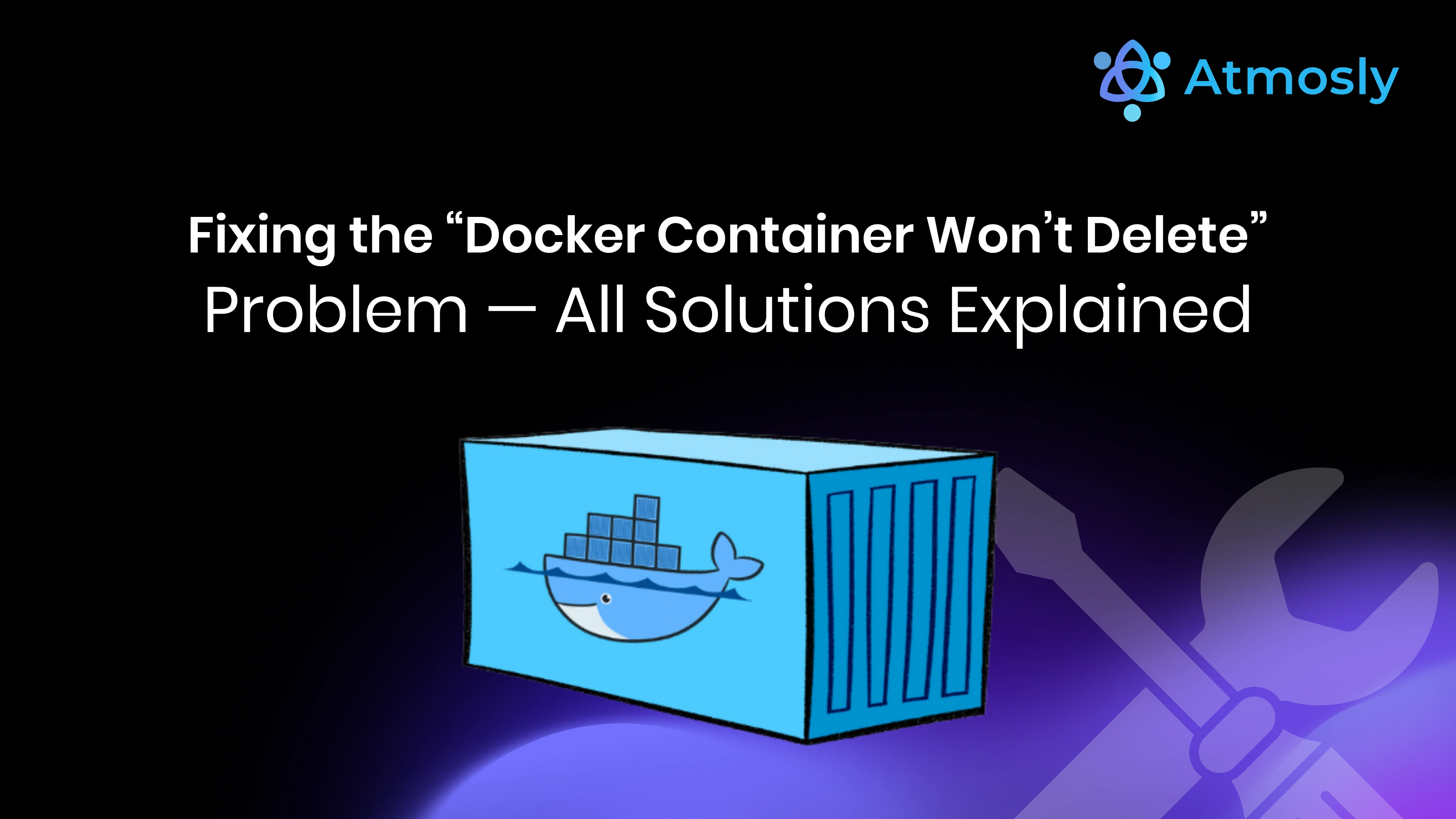
Docker Container cleanup issues often show up when you least expect them. You run a simple delete command, and suddenly the Docker Container refuses to disappear. This guide explains why it happens and how to fix it safely.
If you manage containers daily, this problem is not rare. The good news is that every stuck Docker Container has a clear cause and a reliable fix.
What Does Docker Container Won't Delete Actually Mean?
A Docker Container fails to delete when Docker cannot remove its runtime state, file system layers, or related resources. Docker follows strict rules to avoid data corruption.
In simple terms:
- Docker manages the container
- The container uses system resources
- Docker blocks deletion until those resources release
Understanding this relationship makes troubleshooting faster.
Most Common Reasons a Docker Container Won't Delete
Let's break down the root causes you will see in real environments.
1. The Docker Container Is Still Running
Docker does not delete running containers unless you force it.
- Docker runs the container
- The container uses CPU and memory
- Docker prevents removal
Check container status:
docker psIf the container appears here, it is still active.
2. Container is Stuck in Removal in Progress
This state means Docker started deleting the container but never finished.
Common triggers include:
- Docker daemon crash
- Host system reboot
- Storage driver failure
At this point, Docker believes the container still exists.
3. Volumes and Mounts Are Still Referenced or Busy
A Docker Container often mounts one or more volumes. A volume on its own does not stop docker rm: removing a stopped container keeps its volumes and deletes only the container.
Volumes cause trouble in two other ways:
docker volume rmfails while any container, even a stopped one, still references the volume- A mount point that another host process holds open can make removal fail with a "device or resource busy" error
4. Docker Daemon Is Unresponsive
The Docker daemon controls all container operations.
- Daemon failure stops lifecycle actions
- Commands hang or fail silently
This issue often appears after high CPU or memory usage.
5. File System or Kernel Locks
On Linux hosts, low-level file system locks can prevent deletion.
This usually happens when:
- Containers crash mid-write
- Disk space runs low
- Overlay file systems misbehave
Step-by-Step Solutions to Delete a Docker Container
Follow these fixes in order. Do not jump to force removal unless needed.
Solution 1: Stop the Docker Container Cleanly
Stopping the container releases resources.
docker stop <container_id>
docker rm <container_id>
Why this works:
Docker stops processes → processes release locks → Docker removes the container.
This method solves most cases.
Solution 2: Force Remove the Docker Container
If the container ignores stop commands, force removal works.
docker rm -f <container_id>- Docker kills running processes
- Docker removes container metadata
Use this carefully in production environments.
Solution 3: Clean Up Volumes Linked to the Docker Container
Remove the container together with its anonymous volumes:
docker rm -v <container_id>Named volumes are kept. To delete one, first find every container that still uses it:
docker volume ls
docker ps -a --filter volume=<volume_name>
Remove those containers, then the volume:
docker volume rm <volume_name>Relationship explained:
Container references volume → Docker refuses docker volume rm → remove the container first, then the volume.
Solution 4: Restart the Docker Daemon
A restart clears stuck states.
Linux
sudo systemctl restart dockermacOS / Windows
Restart Docker Desktop.
After restarting, retry:
docker rm <container_id>This fix resolves most Removal In Progress errors.
Solution 5: Remove Containers in Dead State
List all containers:
docker ps -aIf you see Dead or Removal In Progress:
docker rm -f <container_id>If the command fails again, restart Docker and repeat.
Solution 6: Clean Up Unused Docker Resources
Excess clutter increases errors.
docker system prune -aThis removes:
- Stopped containers
- Unused images
- Unused networks
Review the output before confirming.
Solution 7: Kill Container Processes Manually (Advanced)
If a Docker Container still refuses deletion, inspect it.
docker inspect <container_id>Find the process ID (PID) and kill it:
sudo kill -9 <PID>
docker rm <container_id>
This forces the operating system to release locked resources.
When Docker Container Deletion Fails in Kubernetes
If your container runs inside Kubernetes, deletion works differently.
- Kubernetes manages Pods, usually through a controller such as a Deployment or ReplicaSet
- The kubelet on each node runs a Pod's containers through a CRI runtime such as containerd or CRI-O
- Since Kubernetes v1.24 removed dockershim, Docker is not the runtime on most nodes, so
docker psoften shows nothing anddocker rmcannot remove these containers
Correct Fix
Delete the Pod, not the container:
kubectl delete pod <pod_name>If the Pod is stuck in Terminating, force it as a last resort:
kubectl delete pod <pod_name> --grace-period=0 --forceRelationship explained:
Controller → Pod → container. Delete the Pod and the kubelet removes its containers. If a controller owns the Pod, it creates a replacement, so scale down or delete the Deployment to remove it for good.
How to Prevent Docker Container Deletion Issues
Prevention saves debugging time.
Best Practices
- Stop containers before removal
- Avoid orphan volumes
- Monitor disk usage
- Restart Docker after system crashes
- Use clear container naming
These habits reduce stuck Docker Container states.
Quick Troubleshooting Checklist
Use this checklist when a Docker Container won't delete:
- Is the container still running?
- Are volumes attached?
- Is the Docker daemon healthy?
- Is Kubernetes controlling the container?
- Is the host disk full?
Final Thoughts
A Docker Container usually refuses deletion because it still owns resources. Once you stop processes, release volumes, or restart Docker, cleanup works as expected. Force removal should remain a last option.
If you manage containers at scale, automation removes much of this manual cleanup.
Running Containers on Kubernetes? Make Deploys Self-Service
Many stuck-container problems start with hand-run commands on servers. On Kubernetes, teams avoid a lot of them by shipping every service through one standard pipeline instead.
Atmosly, the SquareOps internal developer platform for Kubernetes, helps teams:
- Ship every service through CI/CD with GitOps and one-click rollback
- See what is deployed where, and each workload's status, across clusters and environments
- Give developers self-service preview environments with your policies already applied
Connect a cluster free and see your Kubernetes workloads in one place.