Migrating from AWS to Azure is one of the most significant infrastructure decisions an organization can make in 2026. Whether driven by Microsoft enterprise agreements, Azure Hybrid Benefit savings, or deeper integration with the Microsoft 365 ecosystem, a well-planned migration from AWS to Azure can reduce cloud spending by up to 40% while unlocking capabilities that AWS simply cannot match for Microsoft-centric workloads. This guide walks you through every phase of an AWS to Azure migration — from service mapping and assessment through execution, container migration, and post-migration optimization — with real tools, real numbers, and production-tested strategies.
If you are evaluating the reverse direction, see our companion guide on Azure to AWS migration for a complete walkthrough of that path.
Why Organizations Move from AWS to Azure in 2026
The decision to migrate from AWS to Azure is rarely about a single factor. In 2026, we are seeing organizations make the move for a combination of strategic, financial, and technical reasons that tilt the balance decisively toward Azure for certain workload profiles.
Microsoft Ecosystem Integration
Organizations running Microsoft 365, Dynamics 365, or Power Platform gain significant advantages by consolidating on Azure. Azure Active Directory (now Microsoft Entra ID) provides a unified identity plane across SaaS applications, infrastructure, and developer tools. Single sign-on, conditional access policies, and identity governance work natively across Azure services — eliminating the identity bridging complexity that comes with running Microsoft workloads on AWS.
Teams using GitHub, Azure DevOps, or Visual Studio also benefit from tighter CI/CD integration. Azure Pipelines and GitHub Actions connect directly to Azure Resource Manager without requiring cross-cloud credential management, reducing pipeline complexity and improving deployment velocity.
Azure Hybrid Benefit and Cost Advantages
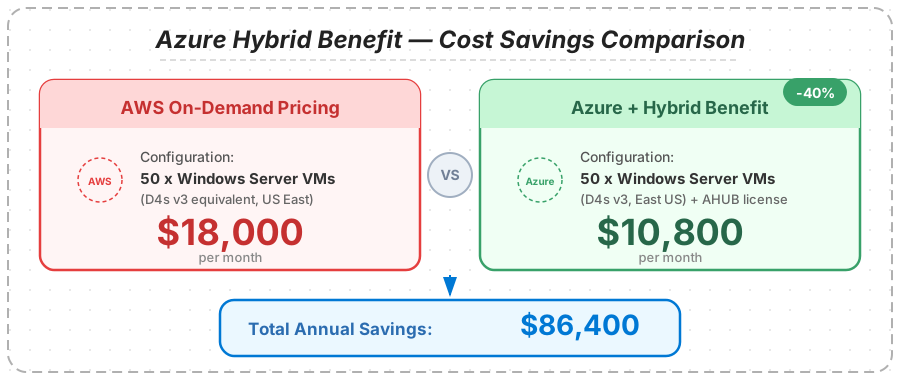
Azure Hybrid Benefit remains one of the strongest financial incentives to migrate. Organizations with existing Windows Server or SQL Server licenses through Software Assurance can apply those licenses to Azure VMs, saving up to 40% on Windows VM costs compared to pay-as-you-go pricing. When combined with Azure Reserved Instances (1-year or 3-year commitments), the savings compound — reaching up to 72% compared to on-demand AWS pricing for equivalent workloads.
For organizations running large Windows Server estates or SQL Server deployments, the savings alone justify the migration effort. A fleet of 50 Windows VMs running on AWS at roughly $350/month each translates to approximately $210,000 annually. Moving those same VMs to Azure with Hybrid Benefit and 3-year Reserved Instances can bring that cost down to approximately $58,800 — a savings of over $151,000 per year.
Compliance and Data Residency
Azure operates more regions globally than any other cloud provider as of 2026, with over 60 announced regions. For organizations with strict data residency requirements — particularly in government, healthcare, and financial services — Azure often provides region availability where AWS does not. Azure Government and Azure Government Secret/Top Secret clouds also offer compliance certifications that simplify regulatory approval processes.
AI and Cognitive Services
Azure's partnership with OpenAI gives it a distinct advantage in enterprise AI workloads. Azure OpenAI Service provides access to GPT-4, GPT-4o, and subsequent models with enterprise-grade security, private networking, and data processing guarantees. Organizations building AI-powered applications increasingly choose Azure to keep their inference workloads on the same platform as their data and infrastructure.
AWS to Azure Service Mapping — Complete Reference
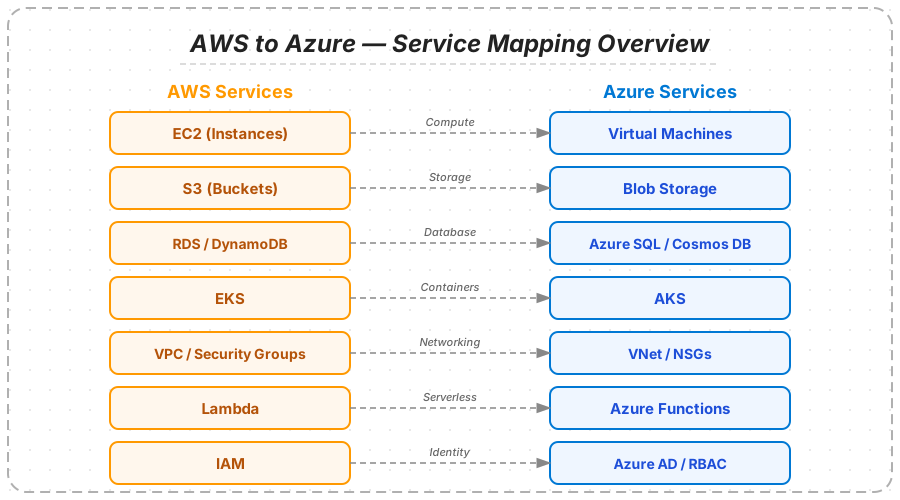
Before migrating, you need a clear understanding of how AWS services translate to their Azure equivalents. The following tables provide a comprehensive AWS to Azure service mapping across compute, storage, database, and networking categories. Bookmark this section as a reference during your migration planning.
Compute Services
| AWS Service | Azure Equivalent | Migration Notes |
|---|---|---|
| EC2 | Azure Virtual Machines | Similar instance families; Azure Hybrid Benefit applies to Windows VMs |
| Lambda | Azure Functions | Both support event-driven execution; Azure offers Durable Functions for orchestration |
| ECS / Fargate | Azure Container Instances / Azure Container Apps | Container Apps provides built-in Dapr integration and KEDA scaling |
| EKS | Azure Kubernetes Service (AKS) | AKS control plane is free; includes AAD integration natively |
| Elastic Beanstalk | Azure App Service | App Service supports deployment slots for zero-downtime releases |
| Auto Scaling Groups | Virtual Machine Scale Sets (VMSS) | VMSS supports both uniform and flexible orchestration modes |
| EC2 Spot Instances | Azure Spot VMs | Similar eviction model; Azure provides 30-second eviction notice |
Storage Services
| AWS Service | Azure Equivalent | Migration Notes |
|---|---|---|
| S3 | Azure Blob Storage | Use AzCopy or Azure Data Box for large transfers; tier mapping: S3 Standard → Hot, S3 IA → Cool, S3 Glacier → Archive |
| EBS | Azure Managed Disks | gp3 maps to Premium SSD v2; io2 maps to Ultra Disk |
| EFS | Azure Files (Premium) | Azure Files supports both SMB and NFS protocols; Azure NetApp Files for high-performance workloads |
| S3 Glacier | Azure Archive Storage | Similar retrieval time tiers; Archive tier has minimum 180-day retention |
| Storage Gateway | Azure File Sync / Azure Stack Edge | File Sync enables hybrid cloud file sharing with on-premises servers |
Database Services
| AWS Service | Azure Equivalent | Migration Notes |
|---|---|---|
| RDS (MySQL/PostgreSQL) | Azure Database for MySQL/PostgreSQL | Use Azure Database Migration Service (DMS) for minimal-downtime migration |
| RDS (SQL Server) | Azure SQL Database / Azure SQL Managed Instance | Managed Instance provides near-100% SQL Server compatibility; Hybrid Benefit applies |
| Aurora | Azure Cosmos DB (PostgreSQL) / Azure SQL Hyperscale | Cosmos DB PostgreSQL for distributed PostgreSQL; Hyperscale for SQL Server workloads |
| DynamoDB | Azure Cosmos DB (NoSQL) | Cosmos DB supports multiple APIs including Table API for DynamoDB-like access patterns |
| ElastiCache | Azure Cache for Redis | Direct migration path; Enterprise tier supports Redis modules |
| Redshift | Azure Synapse Analytics | Synapse integrates data warehousing, big data analytics, and data integration |
Networking Services
| AWS Service | Azure Equivalent | Migration Notes |
|---|---|---|
| VPC | Azure Virtual Network (VNet) | VNets use CIDR blocks; plan address space to avoid overlaps with on-premises |
| Route 53 | Azure DNS + Azure Traffic Manager | Traffic Manager provides DNS-based routing; Azure Front Door for HTTP-level routing |
| CloudFront | Azure CDN / Azure Front Door | Front Door combines CDN, WAF, and global load balancing in one service |
| ALB / NLB | Azure Application Gateway / Azure Load Balancer | Application Gateway includes built-in WAF v2; Load Balancer for Layer 4 |
| Direct Connect | Azure ExpressRoute | ExpressRoute supports up to 100 Gbps; Global Reach connects circuits across regions |
| Transit Gateway | Azure Virtual WAN | Virtual WAN provides hub-spoke networking with integrated VPN and ExpressRoute |
| PrivateLink | Azure Private Link | Both provide private connectivity to services; similar architecture patterns |
Pre-Migration Assessment and Discovery
A successful AWS to Azure migration starts with a thorough assessment of your current AWS environment. Skipping this phase is the single biggest cause of migration delays, cost overruns, and post-migration incidents. Budget 2 to 4 weeks for assessment depending on the size and complexity of your environment.
Inventory and Dependency Mapping
Begin by creating a complete inventory of your AWS resources. Use AWS Config, AWS Resource Explorer, and Cost Explorer to catalog every running resource, its configuration, and its monthly cost. Pay special attention to cross-service dependencies — an EC2 instance that reads from S3, writes to RDS, and publishes to SNS creates a dependency chain that must be migrated together or carefully decoupled.
For dependency mapping, deploy Azure Migrate's discovery and assessment tool. Azure Migrate can install lightweight agents on your AWS VMs to track network connections, process dependencies, and application communication patterns over a 30-day period. This data drives your migration wave planning — ensuring that tightly coupled services move together and loosely coupled services can migrate independently.
Application Portfolio Analysis
Categorize every application using the 6Rs framework adapted for Azure migration:
- Rehost (Lift and Shift): Move the VM or container as-is to Azure. Best for applications with no cloud-native dependencies on AWS-specific services. Use Azure Site Recovery (ASR) for automated replication at approximately $25 per instance per month.
- Replatform: Make minimal changes to leverage Azure-native services. Example: replacing RDS MySQL with Azure Database for MySQL Flexible Server while keeping the application code unchanged.
- Refactor: Modify application architecture to take full advantage of Azure services. Example: replacing SQS with Azure Service Bus and adding Managed Identity authentication.
- Repurchase: Replace a self-managed service with an Azure SaaS equivalent. Example: replacing a self-hosted Jenkins server with Azure DevOps Pipelines.
- Retire: Decommission applications that are no longer needed. Migrations are an excellent opportunity to eliminate technical debt.
- Retain: Keep certain workloads on AWS temporarily or permanently. Not every workload needs to move, and hybrid architectures are valid.
Technical Readiness Assessment
Evaluate each workload for Azure compatibility. Key areas to assess include operating system versions (Azure supports Windows Server 2012 R2 and later, most Linux distributions), application framework versions, database engine versions, and any dependencies on AWS-proprietary services like DynamoDB Streams or Kinesis that require refactoring.
Run Azure Migrate's assessment tool to generate Azure readiness reports. The tool will flag potential issues — such as VM sizes with no direct Azure equivalent, unsupported disk configurations, or network architectures that need redesign — and recommend specific Azure target configurations with estimated monthly costs.
If your infrastructure runs on Kubernetes, our Kubernetes consulting team can help assess your EKS clusters for AKS compatibility and plan the container migration path.
Migration Strategies and Azure Migrate Tools
Azure provides a comprehensive suite of AWS to Azure migration services and tools, each designed for specific workload types. Choosing the right tool for each workload category is critical for minimizing downtime and reducing migration risk.
Azure Migrate — Central Hub
Azure Migrate serves as the central orchestration platform for your entire migration. It provides a single dashboard to track discovery, assessment, and migration progress across all workloads. Key capabilities include:
- Discovery and Assessment: Agentless or agent-based discovery of VMs, databases, and web applications running on AWS. Generates Azure readiness reports with cost estimates and right-sizing recommendations.
- Server Migration: Replicates AWS VMs to Azure using Azure Site Recovery under the hood. Supports both agentless replication (for VMware environments) and agent-based replication (for physical servers and other hypervisors).
- Business Case: Generates a financial business case comparing current AWS costs against projected Azure costs, factoring in Azure Hybrid Benefit, Reserved Instances, and right-sizing opportunities.
Azure Site Recovery (ASR)
ASR is the primary tool for rehosting (lift-and-shift) migrations from AWS to Azure. It works by continuously replicating your AWS EC2 instances to Azure Managed Disks, maintaining a near-real-time copy of your workloads. When you are ready to cut over, ASR performs a final synchronization and boots the replicated VMs in Azure.
Key details for migration planning:
- Cost: Approximately $25 per instance per month during the replication period. This covers the ASR license; you also pay for the replicated storage (typically a few dollars per instance per month for standard managed disks).
- RPO: Recovery Point Objective of approximately 15 minutes for continuous replication.
- Supported OS: Windows Server 2012 R2+, most Linux distributions (RHEL, CentOS, Ubuntu, SUSE, Debian, Oracle Linux).
- Network: Requires outbound HTTPS (port 443) from source VMs to Azure endpoints. No inbound ports need to be opened.
- Test Failover: Supports non-disruptive test failovers that create isolated copies in Azure for validation without affecting the source VMs.
Azure Database Migration Service (DMS)
For database migrations, Azure DMS supports online (minimal-downtime) and offline migration modes for the most common database engines:
- SQL Server: Migrate from RDS SQL Server to Azure SQL Database, Azure SQL Managed Instance, or SQL Server on Azure VMs. Online migration maintains continuous sync until cutover.
- PostgreSQL: Migrate from RDS PostgreSQL or Aurora PostgreSQL to Azure Database for PostgreSQL Flexible Server. Supports logical replication for online migration.
- MySQL: Migrate from RDS MySQL or Aurora MySQL to Azure Database for MySQL Flexible Server. Uses binlog replication for continuous sync.
- MongoDB: Migrate from DocumentDB (with MongoDB compatibility) to Azure Cosmos DB for MongoDB.
DMS handles schema conversion, data transfer, and ongoing replication. For complex migrations involving stored procedures, triggers, and cross-database references, plan for manual validation and potential code adjustments.
Step-by-Step Migration Process (5 Phases)
A production-grade AWS to Azure migration follows five distinct phases. Each phase has specific deliverables, tools, and validation checkpoints. Rushing through phases or skipping validation is how migrations fail.
Phase 1: Discover and Assess (Weeks 1–4)
Deploy Azure Migrate agents across your AWS environment. Configure dependency mapping to run for at least 2 weeks (30 days recommended) to capture all communication patterns, including batch jobs and monthly processes. Generate assessment reports for every workload.
Deliverables: Complete resource inventory, dependency maps, Azure readiness reports, migration wave plan, and financial business case comparing AWS costs to projected Azure costs with Hybrid Benefit applied.
Phase 2: Design and Plan (Weeks 3–6)
Design the Azure landing zone — the foundational infrastructure that will host your migrated workloads. This includes the Azure subscription hierarchy, management group structure, VNet topology (hub-spoke or Virtual WAN), identity integration with Microsoft Entra ID, and governance policies using Azure Policy.
Establish network connectivity between AWS and Azure. For the migration period, set up a site-to-site VPN or ExpressRoute connection to enable data replication and hybrid operation. Plan IP address spaces carefully to avoid conflicts between AWS VPCs and Azure VNets.
Define migration waves — groups of applications and their dependencies that will migrate together. Order waves by complexity: start with low-risk, low-dependency workloads to build confidence and refine processes before tackling critical systems.
Deliverables: Azure landing zone design, network architecture, migration wave plan with sequencing and timelines, rollback procedures for each wave, and updated RACI matrix.
Phase 3: Build Landing Zone (Weeks 5–8)
Deploy the Azure landing zone using Infrastructure as Code — Terraform or Bicep templates that codify your design decisions. Build out the network infrastructure, configure ExpressRoute or VPN connectivity to AWS, set up Azure Monitor and Log Analytics workspaces, and deploy Azure Policy assignments for governance.
Configure Azure Site Recovery vaults and replication policies. Begin replicating Wave 1 VMs to validate the replication pipeline before the first migration window.
Deliverables: Fully deployed Azure landing zone, validated network connectivity between AWS and Azure, ASR replication running for Wave 1 workloads, monitoring and alerting configured, and runbooks for migration execution.
Phase 4: Migrate and Validate (Weeks 7–16+)
Execute migration waves according to the plan. For each wave:
- Pre-migration validation: Verify ASR replication health, confirm recovery points are current, and run a test failover to validate workload functionality in Azure.
- Communication: Notify stakeholders of the maintenance window. Ensure rollback contacts and procedures are documented and accessible.
- Execute migration: Initiate planned failover in ASR. This triggers a final delta sync, shuts down the source VM (optional), and boots the Azure VM. Update DNS records, load balancer configurations, and any external integrations to point to the new Azure endpoints.
- Post-migration testing: Run the application's smoke tests, integration tests, and performance benchmarks against Azure. Validate data integrity, network connectivity, and user access.
- Rollback window: Maintain the source AWS environment for a defined period (typically 1 to 2 weeks) after each wave. If critical issues emerge, DNS can be reverted to the AWS endpoints while Azure issues are resolved.
Deliverables: Each wave successfully migrated and validated, updated monitoring dashboards, incident reports for any issues encountered, and updated documentation reflecting the Azure environment.
Phase 5: Optimize and Decommission (Weeks 14–20+)
After all waves have migrated and stabilized, shift focus to optimization. Right-size Azure VMs based on actual utilization data (Azure Advisor provides recommendations). Apply Azure Hybrid Benefit to eligible VMs. Purchase Reserved Instances for stable workloads. Implement auto-scaling where appropriate.
Decommission AWS resources methodically. Start with compute resources (terminate EC2 instances), then storage (delete S3 buckets after confirming data migration), then networking (remove VPN connections, release Elastic IPs), and finally close out AWS accounts or reduce Reserved Instance commitments.
Deliverables: Cost optimization report showing Azure spend versus pre-migration AWS spend, decommissioned AWS resource inventory, updated architecture documentation, and knowledge transfer to operations teams.
Data Migration — S3 to Azure Blob, RDS to Azure SQL
Data migration is often the most time-consuming phase of a migration from AWS to Azure, particularly for organizations with large object storage estates or complex database schemas. The tools and techniques differ significantly between object storage and database migration.
S3 to Azure Blob Storage
For migrating S3 buckets to Azure Blob Storage, you have several options depending on data volume and transfer time constraints:
AzCopy (recommended for most migrations): AzCopy is a command-line tool that performs high-performance data transfers between S3 and Azure Blob Storage directly. It supports server-to-server copying (data flows directly from S3 to Azure without passing through your local machine), automatic retry on failure, and parallel transfer streams.
# Copy an entire S3 bucket to an Azure Blob container
azcopy copy "https://s3.amazonaws.com/my-bucket" \
  "https://mystorageaccount.blob.core.windows.net/my-container?sv=SAS_TOKEN" \
  --recursive=true \
  --s2s-preserve-access-tier=false

# Sync only changed/new files (for incremental updates)
azcopy sync "https://s3.amazonaws.com/my-bucket" \
  "https://mystorageaccount.blob.core.windows.net/my-container?sv=SAS_TOKEN" \
  --recursive=true
For datasets under 10 TB, AzCopy over the internet typically completes within a few days. For larger datasets, consider Azure ExpressRoute or Azure Data Box.
Azure Data Box (for large-scale offline transfer): For datasets exceeding 40 TB, Microsoft ships a physical Data Box appliance to your data center. You load data onto the device (up to 80 TB per Data Box, or 1 PB for Data Box Heavy), and Microsoft transfers it to your Azure storage account upon return. Turnaround time is approximately 7 to 10 business days from order to data availability.
Storage tier mapping: Map your S3 storage classes to Azure Blob tiers during migration. S3 Standard maps to Azure Hot tier, S3 Infrequent Access maps to Azure Cool tier, S3 Glacier Instant Retrieval maps to Azure Cold tier, and S3 Glacier Deep Archive maps to Azure Archive tier. Configure Azure Blob lifecycle management policies to automatically tier data after migration, mirroring your S3 lifecycle rules.
RDS to Azure SQL and Managed Databases
Database migrations require careful planning around schema compatibility, data integrity, and cutover timing.
RDS SQL Server to Azure SQL Managed Instance: Azure SQL Managed Instance provides near-100% compatibility with SQL Server, making it the preferred target for RDS SQL Server migrations. Use Azure Database Migration Service in online mode for minimal downtime — DMS maintains continuous replication from RDS to Managed Instance until you perform the final cutover. Azure Hybrid Benefit applies to SQL Managed Instance, providing significant cost savings for organizations with existing SQL Server licenses.
RDS PostgreSQL to Azure Database for PostgreSQL: Use DMS with logical replication for online migration. Export the schema using pg_dump, import it to the Azure target, then configure DMS to replicate data and ongoing changes. Validate that all extensions used in RDS PostgreSQL are supported in Azure Database for PostgreSQL Flexible Server — most common extensions (PostGIS, pg_stat_statements, pgcrypto) are supported, but some may require enabling in Azure Portal.
RDS MySQL to Azure Database for MySQL: DMS supports binlog-based replication for online migration. Ensure the source RDS MySQL instance has binary logging enabled (it is by default on RDS) and that the binlog retention period is sufficient to cover the migration duration. For large databases, consider taking a mysqldump snapshot for the initial load, then using DMS for ongoing replication until cutover.
For organizations requiring specialized migration support, our cloud migration services team has executed migrations ranging from single-database transfers to multi-region, multi-database estate moves.
Container Migration — EKS to AKS
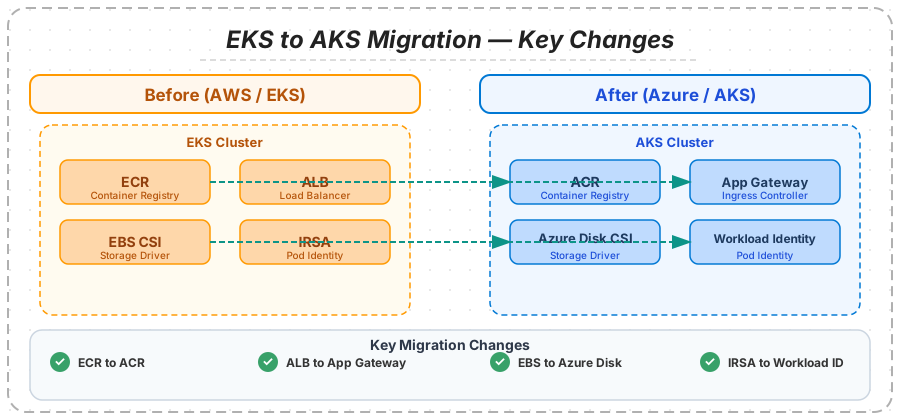
Migrating Kubernetes workloads from Amazon EKS to Azure Kubernetes Service (AKS) involves more than just redeploying containers. You need to translate AWS-specific Kubernetes integrations — container registries, storage classes, ingress controllers, and pod identity mechanisms — to their Azure equivalents. The Kubernetes API itself is portable, but the ecosystem around it is not.
Container Registry Migration (ECR to ACR)
Start by migrating your container images from Amazon ECR to Azure Container Registry (ACR). Use tools like crane (from Google's go-containerregistry project) or Skopeo to copy images between registries without pulling them to your local machine.
# Copy all images from ECR to ACR using crane
crane copy \
  123456789.dkr.ecr.us-east-1.amazonaws.com/my-app:v1.4.2 \
  myregistry.azurecr.io/my-app:v1.4.2

# Bulk copy using skopeo
skopeo copy \
  docker://123456789.dkr.ecr.us-east-1.amazonaws.com/my-app:v1.4.2 \
  docker://myregistry.azurecr.io/my-app:v1.4.2
Update your CI/CD pipelines to push images to ACR going forward. ACR supports geo-replication, which can improve image pull times for multi-region AKS deployments.
Manifest Changes — Before and After
The following examples show the specific manifest changes required when migrating from EKS to AKS. These are the most common changes you will encounter.
Deployment — ECR to ACR registry change:
# BEFORE — EKS (pulling from ECR)
apiVersion: apps/v1
kind: Deployment
metadata:
  name: my-app
  namespace: production
spec:
  replicas: 3
  selector:
    matchLabels:
      app: my-app
  template:
    metadata:
      labels:
        app: my-app
    spec:
      serviceAccountName: my-app-sa
      containers:
      - name: my-app
        image: 123456789.dkr.ecr.us-east-1.amazonaws.com/my-app:v1.4.2
        ports:
        - containerPort: 8080
        resources:
          requests:
            cpu: 250m
            memory: 512Mi
          limits:
            cpu: 500m
            memory: 1Gi
# AFTER — AKS (pulling from ACR)
apiVersion: apps/v1
kind: Deployment
metadata:
name: my-app
namespace: production
spec:
replicas: 3
selector:
matchLabels:
app: my-app
template:
metadata:
labels:
app: my-app
azure.workload.identity/use: "true"
spec:
serviceAccountName: my-app-sa
containers:
- name: my-app
image: myregistry.azurecr.io/my-app:v1.4.2
ports:
- containerPort: 8080
resources:
requests:
cpu: 250m
memory: 512Mi
limits:
cpu: 500m
memory: 1GiStorageClass — gp3 to Azure Managed Disk:
# BEFORE — EKS (AWS EBS CSI driver with gp3)
apiVersion: storage.k8s.io/v1
kind: StorageClass
metadata:
  name: fast-storage
provisioner: ebs.csi.aws.com
parameters:
  type: gp3
  iops: "4000"
  throughput: "250"
  encrypted: "true"
  kmsKeyId: arn:aws:kms:us-east-1:123456789:key/abc-123
reclaimPolicy: Retain
volumeBindingMode: WaitForFirstConsumer
allowVolumeExpansion: true
# AFTER — AKS (Azure Disk CSI driver with managed-premium)
apiVersion: storage.k8s.io/v1
kind: StorageClass
metadata:
name: fast-storage
provisioner: disk.csi.azure.com
parameters:
skuName: Premium_LRS
cachingMode: ReadOnly
enableBursting: "true"
reclaimPolicy: Retain
volumeBindingMode: WaitForFirstConsumer
allowVolumeExpansion: trueIngress — ALB to Azure Application Gateway:
# BEFORE — EKS (AWS ALB Ingress Controller)
apiVersion: networking.k8s.io/v1
kind: Ingress
metadata:
  name: my-app-ingress
  namespace: production
  annotations:
    kubernetes.io/ingress.class: alb
    alb.ingress.kubernetes.io/scheme: internet-facing
    alb.ingress.kubernetes.io/target-type: ip
    alb.ingress.kubernetes.io/certificate-arn: arn:aws:acm:us-east-1:123456789:certificate/abc-123
    alb.ingress.kubernetes.io/listen-ports: '[{"HTTPS":443}]'
    alb.ingress.kubernetes.io/ssl-redirect: "443"
spec:
  rules:
  - host: app.example.com
    http:
      paths:
      - path: /
        pathType: Prefix
        backend:
          service:
            name: my-app-svc
            port:
              number: 8080
# AFTER — AKS (Azure Application Gateway Ingress Controller)
apiVersion: networking.k8s.io/v1
kind: Ingress
metadata:
name: my-app-ingress
namespace: production
annotations:
kubernetes.io/ingress.class: azure/application-gateway
appgw.ingress.kubernetes.io/ssl-redirect: "true"
appgw.ingress.kubernetes.io/backend-protocol: "http"
appgw.ingress.kubernetes.io/request-timeout: "60"
spec:
tls:
- hosts:
- app.example.com
secretName: app-tls-secret
rules:
- host: app.example.com
http:
paths:
- path: /
pathType: Prefix
backend:
service:
name: my-app-svc
port:
number: 8080ServiceAccount — IRSA to Workload Identity:
# BEFORE — EKS (IAM Roles for Service Accounts / IRSA)
apiVersion: v1
kind: ServiceAccount
metadata:
  name: my-app-sa
  namespace: production
  annotations:
    eks.amazonaws.com/role-arn: arn:aws:iam::123456789:role/my-app-s3-access
# AFTER — AKS (Azure Workload Identity)
apiVersion: v1
kind: ServiceAccount
metadata:
name: my-app-sa
namespace: production
annotations:
azure.workload.identity/client-id: "a1b2c3d4-e5f6-7890-abcd-ef1234567890"
labels:
azure.workload.identity/use: "true"Note how IRSA uses an IAM role ARN annotation on the ServiceAccount, while Azure Workload Identity uses a managed identity client ID annotation combined with a label. On the Azure side, you also need to establish a federated identity credential that links the managed identity to the Kubernetes service account — this replaces the OIDC provider trust relationship configured in AWS IAM.
AKS-Specific Considerations
When provisioning your AKS cluster, take advantage of Azure-specific features that have no EKS equivalent:
- AKS free control plane: Unlike EKS which charges $0.10/hour ($73/month) per cluster for the control plane, AKS provides the control plane at no cost. You only pay for the worker nodes.
- Microsoft Entra ID integration: AKS integrates natively with Microsoft Entra ID for cluster authentication and Kubernetes RBAC. This eliminates the need for separate identity management — users authenticate with their corporate Entra ID credentials.
- Azure CNI Overlay: AKS supports Azure CNI Overlay networking, which provides pod-level networking without consuming VNet IP addresses for every pod. This solves the IP exhaustion challenges that are common with EKS VPC CNI in large clusters.
- KEDA integration: AKS offers built-in KEDA (Kubernetes Event-Driven Autoscaling) as a managed add-on, enabling scaling based on event sources like Azure Service Bus queues, Kafka topics, or custom metrics.
Identity and Access — AWS IAM to Azure RBAC
Translating your AWS IAM model to Azure Role-Based Access Control (RBAC) is one of the more nuanced aspects of migration. While both systems control who can do what with which resources, their architectures differ fundamentally.
Conceptual Mapping
| AWS IAM Concept | Azure RBAC Equivalent | Key Differences |
|---|---|---|
| IAM Users | Microsoft Entra ID Users | Entra ID is a full identity platform with MFA, conditional access, and identity governance built in |
| IAM Groups | Entra ID Security Groups | Azure groups can be dynamic (auto-populated based on user attributes) or assigned |
| IAM Roles (for services) | Managed Identities | Managed Identities are auto-rotated; no credential management needed |
| IAM Policies | Azure Role Definitions | Azure has 200+ built-in roles; custom roles are scoped to management group, subscription, or resource group |
| Resource-based Policies | Azure RBAC Assignments | RBAC assignments attach roles to principals at a specific scope (resource, resource group, subscription, or management group) |
| AWS Organizations SCPs | Azure Policy + Management Groups | Azure Policy provides both deny effects (like SCPs) and audit/remediate capabilities |
| IRSA (EKS Pod Identity) | Workload Identity (AKS) | Workload Identity uses Entra ID federated credentials instead of OIDC provider trust |
Migration Approach
Start by mapping your AWS IAM principals to Entra ID equivalents. If your organization already uses Microsoft 365, most users will already have Entra ID identities — this significantly simplifies the migration. For service accounts, create Azure Managed Identities (system-assigned for single-resource binding, user-assigned for shared identity across resources).
Translate IAM policies to Azure RBAC assignments. AWS policies are JSON documents attached to users, groups, or roles. Azure RBAC works through role assignments that combine a principal, a role definition, and a scope. In many cases, built-in Azure roles (like Reader, Contributor, or specific service roles like Storage Blob Data Reader) cover the same permissions as custom AWS policies — reducing the maintenance burden.
For fine-grained permissions that built-in roles do not cover, create custom Azure role definitions. Custom roles support the same allow/deny action model as AWS IAM policies but are scoped to management group, subscription, or resource group rather than being global.
Managed Identities vs IAM Roles
Azure Managed Identities replace the AWS pattern of creating IAM roles and attaching them to EC2 instances or ECS tasks. There are two types:
- System-assigned Managed Identity: Created and tied to a specific Azure resource (VM, App Service, Azure Function). The identity lifecycle is bound to the resource — when the resource is deleted, the identity is automatically cleaned up. Use this for resources that need their own unique identity.
- User-assigned Managed Identity: Created as a standalone Azure resource that can be attached to multiple services. Use this when multiple resources need the same set of permissions — for example, multiple VMs in a scale set that all need to read from the same Key Vault.
Both types eliminate credential management entirely. There are no access keys to rotate, no secrets to store — Azure handles token issuance and rotation automatically through the Azure Instance Metadata Service (IMDS), similar to how EC2 instance profiles work but with tighter platform integration.
Cost Analysis with Azure Hybrid Benefit
Cost optimization is often the primary driver for AWS to Azure migration, and Azure Hybrid Benefit is the single largest lever available. Understanding the math is essential for building a credible business case and ensuring you capture all available savings post-migration.
Azure Hybrid Benefit Explained
Azure Hybrid Benefit allows organizations with active Windows Server or SQL Server licenses with Software Assurance (or qualifying subscription licenses) to use those licenses on Azure, eliminating the Windows or SQL licensing cost from the Azure VM price. The savings vary by workload type:
- Windows Server VMs: Save up to 40% compared to pay-as-you-go pricing. For a D4s_v5 instance (4 vCPUs, 16 GB RAM), this reduces the monthly cost from approximately $182 to approximately $109.
- SQL Server: Save up to 55% on Azure SQL Database and SQL Managed Instance. For a Business Critical 8-vCore Managed Instance, Hybrid Benefit reduces the monthly cost by approximately $2,800.
- Linux VMs with RHEL/SUSE subscriptions: Azure Hybrid Benefit for Linux allows organizations to switch from pay-as-you-go RHEL or SUSE pricing to bring-your-own-subscription pricing, saving 30-40% on the OS component.
Combined Savings — Hybrid Benefit + Reserved Instances
The most significant savings come from stacking Azure Hybrid Benefit with Reserved Instances. Reserved Instances provide discounts of 36% (1-year) to 57% (3-year) compared to pay-as-you-go pricing. When combined with Hybrid Benefit, total savings reach up to 72% compared to equivalent on-demand AWS pricing.
| Scenario | AWS On-Demand (monthly) | Azure Pay-As-You-Go | Azure + Hybrid Benefit | Azure + HB + 3yr RI | Savings vs AWS |
|---|---|---|---|---|---|
| Windows VM (D4s_v5 equivalent) | $196 | $182 | $109 | $55 | 72% |
| SQL MI (8 vCore, Business Critical) | $5,100 (RDS equiv.) | $4,950 | $2,150 | $1,350 | 74% |
| Windows VM Fleet (50 VMs, D4s_v5) | $9,800/mo | $9,100/mo | $5,450/mo | $2,750/mo | 72% |
Migration Cost Factors
Factor the following costs into your migration budget:
- Azure Site Recovery: Approximately $25 per instance per month during replication. For a 50-VM migration replicating over 8 weeks, budget approximately $2,500 in ASR costs.
- Data transfer (egress): AWS charges for data egress. For a migration involving 10 TB of data transfer, expect approximately $900 in AWS egress charges (at $0.09/GB). Azure does not charge for ingress.
- Parallel running costs: During the migration period, you are paying for both AWS and Azure resources. Plan migration waves to minimize the overlap period. Target 2 weeks of parallel running per wave.
- Professional services: Depending on migration complexity, budget for migration specialists. SquareOps provides Azure consulting services that cover landing zone design, migration execution, and post-migration optimization.
Azure Cost Management and Billing
After migration, use Azure Cost Management (formerly Azure Cost Management + Billing) to monitor and optimize spending. Set up budget alerts at the subscription and resource group levels. Use Cost Analysis views to break down spending by service, resource group, tag, and meter. Enable Azure Advisor cost recommendations — Advisor automatically identifies idle resources, oversized VMs, and Reserved Instance purchase opportunities.
Tag every Azure resource with consistent metadata (environment, application, cost center, owner) to enable accurate cost allocation. Azure Policy can enforce tagging standards, ensuring no resource is created without required tags.
Post-Migration Optimization
The migration itself is only half the journey. Post-migration optimization ensures that you capture the full financial and operational benefits once you migrate from AWS to Azure. Organizations that skip this phase typically leave 20-30% of potential savings on the table.
Right-Sizing
After 2 to 4 weeks of running on Azure, review Azure Advisor right-sizing recommendations. Many VMs migrated via lift-and-shift are oversized for their actual workload. Azure Monitor and VM Insights provide CPU, memory, disk, and network utilization data that drives right-sizing decisions.
Common patterns we see post-migration:
- VMs provisioned for peak load that consistently run below 20% CPU utilization — downsize by one or two VM sizes
- Premium SSD disks attached to VMs that generate fewer than 100 IOPS — switch to Standard SSD for 50% disk cost reduction
- Dev/test environments running 24/7 that are only used during business hours — implement auto-start/stop schedules using Azure Automation or DevTest Labs
Reserved Instances and Savings Plans
Once workloads have stabilized (typically 4 to 8 weeks post-migration), purchase Reserved Instances for stable, predictable workloads. Prioritize VMs with consistent utilization — production databases, application servers, and infrastructure services. Use Azure Reservation Recommendations in Cost Management to identify the highest-impact purchases.
For workloads with variable VM sizes but consistent compute consumption, consider Azure Savings Plans. Savings Plans provide discounts similar to Reserved Instances but apply flexibly across VM families, regions, and services — offering more flexibility for dynamic environments.
Security Hardening
Enable Microsoft Defender for Cloud across all subscriptions. Defender provides continuous security assessment, threat detection, and compliance monitoring. Key configurations include:
- Enable Defender for Servers (Plan 2) for VM vulnerability assessment and endpoint detection
- Enable Defender for Storage to detect anomalous access patterns and potential data exfiltration
- Enable Defender for SQL to monitor database activity and detect SQL injection attempts
- Configure Just-In-Time (JIT) VM access to eliminate persistent open management ports
- Enable Azure DDoS Protection Standard for VNets hosting internet-facing workloads
Monitoring and Observability
Consolidate monitoring on Azure Monitor, Log Analytics, and Application Insights. Replace CloudWatch alarms with Azure Monitor alert rules. Migrate CloudWatch dashboards to Azure Workbooks or Grafana (Azure Managed Grafana provides a fully managed Grafana instance with native Azure Monitor data source integration).
Configure diagnostic settings on all Azure resources to send platform logs and metrics to a central Log Analytics workspace. Build KQL (Kusto Query Language) queries for the same operational insights you had in CloudWatch Insights. KQL provides significantly more analytical power than CloudWatch Insights query syntax — invest time in learning it, as it pays dividends in operational efficiency.
Governance and Compliance
Implement Azure Policy to enforce organizational standards across all subscriptions. Common policies include:
- Require specific resource tags (environment, cost center, owner) on all resources
- Restrict VM SKUs to approved sizes to prevent cost sprawl
- Enforce encryption at rest for all storage accounts and managed disks
- Deny public IP address creation except in designated network resource groups
- Require Azure Key Vault for secret management — no secrets in application settings or environment variables
Use Azure Blueprints or Terraform modules to package governance policies, RBAC assignments, and resource templates into repeatable deployment packages for new subscriptions and environments.
Disaster Recovery
Configure Azure Site Recovery for disaster recovery of your migrated workloads. ASR supports Azure-to-Azure replication, enabling you to replicate VMs from your primary Azure region to a secondary region. This provides business continuity with RPOs as low as 5 minutes and automated recovery plans that can orchestrate the failover of multi-tier applications.
Test disaster recovery plans quarterly. ASR's test failover capability creates isolated copies in the secondary region without affecting production — there is no reason not to test regularly.
Start Your AWS to Azure Migration
Migrating from AWS to Azure is a significant undertaking, but with the right planning, tools, and execution methodology, it delivers measurable benefits — from Azure Hybrid Benefit cost savings to deeper Microsoft ecosystem integration and enhanced enterprise AI capabilities. The key is to invest in thorough assessment, execute in manageable waves, and commit to post-migration optimization.
Through its AWS to Azure migration services, SquareOps has guided organizations through complex cloud migrations — from single-workload moves to full-estate transitions spanning hundreds of VMs, dozens of databases, and multiple Kubernetes clusters. Our team brings hands-on experience with Azure Migrate, ASR, DMS, and AKS to every engagement.
Ready to plan your AWS to Azure migration? Talk to our cloud migration team for a free assessment of your AWS environment and a detailed Azure migration roadmap with projected cost savings.